How to Convert HTML to PDF Without Losing Formatting
Render the HTML in a real browser first, then export. Use a print-engine (text) PDF when you need selectable text and links, and add print CSS to stop tables splitting and backgrounds disappearing. Use a screenshot-style (raster) PDF when the page must look exactly like the screen, such as charts or complex dashboards.
On this page
- Why HTML loses its formatting when saved as PDF
- Text PDF vs. snapshot PDF: which one do you need?
- How to save HTML as PDF with your browser's print dialog
- Print CSS that keeps your formatting intact
- How to export HTML to PDF with HTMLViewer.io
- Converting HTML to PDF on iPhone and iPad
- Code-based options for developers
- Troubleshooting checklist
Your HTML looks fine in the browser, but the PDF comes out with missing colors, tables sliced across pages, or a blank space where a chart should be. The fix is to pick the right kind of export (print-engine text or pixel snapshot) and, when you control the code, add a few lines of print CSS.
Key Takeaways
- There are two ways to make a PDF from HTML: the browser's print engine (selectable text, smaller files) or a screenshot (exact look, text not selectable).
- Most formatting loss comes from print rules: backgrounds are dropped by default, page breaks land mid-row, and fixed-width layouts overflow the paper.
- Four CSS rules fix most problems:
@page,break-inside: avoid,print-color-adjust: exact, and a proper<thead>.- HTMLViewer.io exports either kind of PDF from pasted HTML, without an account.
Why HTML loses its formatting when saved as PDF
HTML is built for a scrolling screen of any width; a PDF is a stack of fixed-size pages. When a browser converts one to the other, it switches to "print" mode and makes decisions you didn't make.
Here's what usually goes wrong:
| Problem | What causes it |
|---|---|
| Background colors and images vanish | Browsers default to saving ink and skip backgrounds when printing |
| Table rows or lines of text cut in half | Page breaks are placed wherever the page runs out of room |
| Content cut off on the right | Fixed widths (e.g. width: 1400px) are wider than A4 or Letter paper |
| Charts are empty | JavaScript-drawn charts (canvas/SVG) hadn't finished rendering, or animations were mid-way |
| Different fonts | Web fonts didn't load in time, or the export tool had no access to them |
| Layout changes completely | The page has @media print rules that hide or restyle things |
If you wrote the HTML yourself, you can fix most of this in CSS. If someone sent you the file, or an AI chatbot generated it, the quicker route is usually choosing the right export mode.
Text PDF vs. snapshot PDF: which one do you need?
Use a text (print-engine) PDF by default; switch to a snapshot when the visual layout matters more than the text. The difference is how the PDF is built.
A print-engine PDF is what you get from the browser's Print → Save as PDF. The browser lays the page out again for paper and writes real text and vector shapes into the file. A snapshot PDF takes an image of the rendered page and slices it into pages.
| Text / print engine (vector) | Exact snapshot (raster) | |
|---|---|---|
| Text selectable and searchable | Yes | No |
| Links clickable | Yes | No |
| Looks identical to the screen | Close, but print rules can change layout | Yes, pixel for pixel |
| File size | Smaller | Larger |
| Sharp when zoomed | Yes | Limited by image resolution |
| Good for | Reports, invoices, documents, anything people will copy from | Dashboards, charts, designed one-pagers, layouts that break in print |
A good rule: if someone will search the PDF, copy from it, or click links in it, use text mode. If it's going into a slide deck or an archive and must look exactly as it does on screen, use a snapshot.
How to save HTML as PDF with your browser's print dialog
Every desktop browser can do this: open the HTML file, press Ctrl+P (Cmd+P on Mac), and choose Save as PDF as the destination. It's free and gives you a text PDF.
- Open the
.htmlfile in Chrome, Edge, Firefox or Safari (double-click it, or drag it into a browser window). - Press Ctrl+P / Cmd+P.
- Set the destination to Save as PDF.
- Open the extra settings and check paper size, margins and scale.
- If colors are missing, turn on the option for background graphics (the wording varies by browser).
- Save.
The catch is that you get the browser's default page breaks. If the result still looks wrong, it's time for print CSS.
Print CSS that keeps your formatting intact
Four small rules solve most HTML-to-PDF problems. Put them in a <style> block, either at the top level or inside @media print { ... } so they don't affect the screen view.
<style>
  /* 1. Paper size and margins */
  @page {
    size: A4 portrait;
    margin: 15mm;
  }

  /* 2. Don't split these across pages */
  tr, img, figure, .card {
    break-inside: avoid;
  }

  /* 3. Keep background colors and images */
  body {
    print-color-adjust: exact;
    -webkit-print-color-adjust: exact;
  }

  /* 4. Repeat table headers on every page */
  thead {
    display: table-header-group;
  }
</style>
What each rule does:
@pagesets the page box size and margins.sizeaccepts keywords likeA4,letterandlandscape. See MDN: @page.break-inside: avoidtells the browser not to place a page break inside that element. It's widely supported, though MDN notes some parts have varying support, so test with your target browser. See MDN: break-inside.print-color-adjust: exactstops the browser from dropping backgrounds and adjusting colors for print. MDN marks it Baseline 2025, so keep the-webkit-prefixed version for older browsers. See MDN: print-color-adjust.thead { display: table-header-group }is the browser's default for<thead>, but CSS frameworks and "div tables" sometimes override it. Restoring it lets browsers repeat the header row on each printed page of a long table. See MDN:<thead>and MDN: display.
Two more habits help. Replace fixed pixel widths with max-width: 100% so the layout fits the paper. And if the page has charts, turn off their animation (in Chart.js, animation: false) so the print engine never catches them half-drawn.
How to export HTML to PDF with HTMLViewer.io
If you can't or don't want to edit the CSS, HTMLViewer.io gives you both export modes from one dialog. It's a free, in-browser HTML viewer: you paste code, see a live preview, and export. There's no file upload, so you copy the code in.
- Copy the HTML. Open the
.htmlfile in a text editor (Notepad, TextEdit, VS Code), select all, and copy. If the HTML came from ChatGPT, Claude or Gemini, copy it from the chat. See how to preview AI-generated HTML for tips. - Paste it into the editor. The live preview renders the page, including CSS, JavaScript and charts from CDN libraries. Check that everything has loaded before exporting.
- Click Export PDF in the preview toolbar.
- Choose a quality mode:
- Text (recommended) gives you selectable, searchable text and working links. It uses the browser's print engine, so it opens the print dialog, where you choose Save as PDF. Options include Keep tables & images on one page (so rows and images aren't split), page numbers, and background colors & images.
- Exact snapshot makes a pixel-identical copy of what's on screen and downloads it directly. Text isn't selectable and the file is larger, but page breaks are placed on blank rows so lines aren't cut in half.
- Set the paper: A4 or Letter, Portrait or Landscape, and margins of None, Narrow or Normal.
- Export. In text mode, finish in the print dialog; the snapshot downloads on its own.
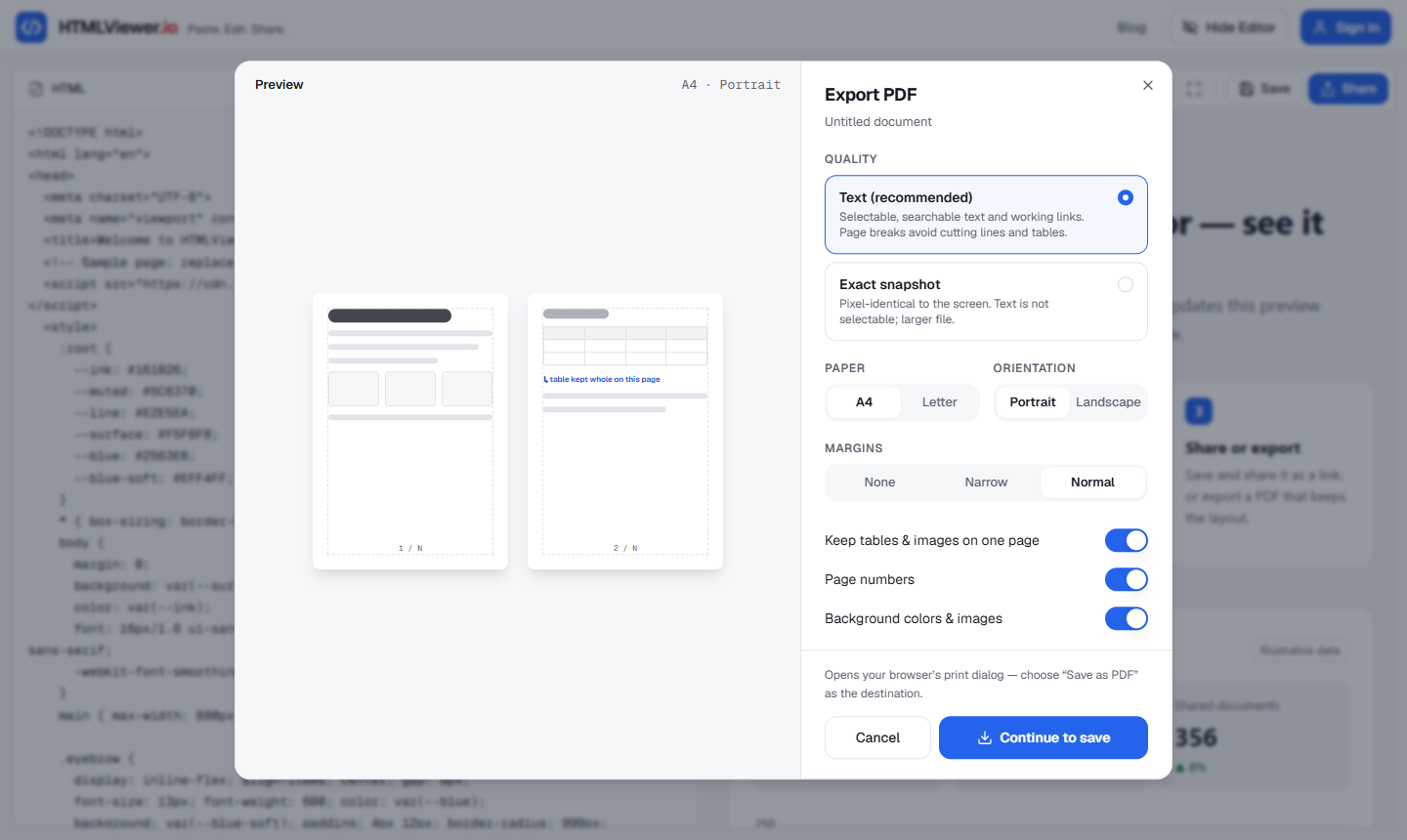
You don't need an account to export. Signing in with Google is only required if you also want to save the document or share it as a link. People who open a shared link also get an Export PDF button, which is handy when you send a report to someone without hosting it.
A quick way to choose: start with Text mode and the "Keep tables & images on one page" option. If the charts or layout still look off, export again with Exact snapshot.
Converting HTML to PDF on iPhone and iPad
On iPhone and iPad, use Exact snapshot. Printing works differently on iOS than on desktop browsers, and in HTMLViewer.io text mode may print the whole page there, so the snapshot mode is the more reliable choice.
Getting the code in is the other hurdle on a phone. Open the file in an app that shows the source (a text, notes or files app), copy it, and paste it into HTMLViewer.io's Code tab; the View tab shows the result. The guide to opening HTML files on iPhone and Android covers this step by step.
Code-based options for developers
If you need PDFs generated automatically (invoices, reports in a pipeline), use a headless browser instead of a manual export.
- Puppeteer / headless Chrome.
page.pdf()renders the page with theprintmedia type. By default it uses Letter paper and doesn't print backgrounds, so passprintBackground: true, and setpreferCSSPageSize: trueif you want your@pagesize to win (PDFOptions reference). Callpage.emulateMediaType('screen')first if you want the screen styles instead of print styles.
await page.goto(url, { waitUntil: 'networkidle0' });
await page.pdf({
  path: 'report.pdf',
  format: 'A4',
  printBackground: true,
  preferCSSPageSize: true,
});
- Playwright offers a similar
page.pdf()method if that's already your test tool. - wkhtmltopdf still turns up in old tutorials, but its GitHub repository was archived on January 2, 2023 and is read-only. It uses an old Qt WebKit engine, so modern CSS such as flexbox and grid often renders poorly. Prefer a Chromium-based tool for new projects.
The same print CSS from earlier works with all of these, because they use the same print engine as the browser.
Troubleshooting checklist
Match the symptom to the fix:
| Symptom | Fix |
|---|---|
| White background instead of colored | Turn on backgrounds in the dialog, or add print-color-adjust: exact |
| Rows or images split across pages | break-inside: avoid, or "Keep tables & images on one page" |
| Right side cut off | Remove fixed widths, switch to Landscape, or use Narrow margins |
| Chart missing | Wait for it to render, disable animation, or use Exact snapshot |
| Text can't be selected | You used a snapshot; export again in Text mode |
| Huge file | Snapshot PDFs are images; use Text mode if size matters |
If you're still deciding which tool to use for everyday HTML viewing, the comparison of online HTML viewers covers the trade-offs.
Frequently asked questions
Why are background colors missing from my PDF?
Browsers skip background colors and images when printing unless you turn them on. Tick the background graphics option in the print dialog, or add print-color-adjust: exact to the elements whose colors must survive.
How do I stop a table from being cut in half across PDF pages?
Add break-inside: avoid to table rows (or small tables and figures) in your print CSS. For long tables, keep the header in a thead element so browsers can repeat it on each printed page.
Can I convert HTML to PDF with selectable text?
Yes. Any export that goes through the browser's print engine, such as Save as PDF in the print dialog, keeps text selectable and searchable and links clickable. Screenshot-style exports turn the page into images, so text can't be selected.
Why does my chart look blank or broken in the PDF?
Charts drawn by JavaScript need the script to finish before the PDF is made. Export from a page where the chart is already visible on screen, or use an exact snapshot export that captures what you see.
Do I need an account to export PDF on HTMLViewer.io?
No. Previewing HTML and exporting a PDF work without signing in. A Google sign-in is only needed to save documents or create share links.
Paste your HTML and see it rendered in seconds — free, no sign-up needed to preview.
Open HTML Viewer