How to Preview and Share HTML from ChatGPT, Claude or Gemini
Ask the chatbot for one self-contained HTML file, copy the entire code block, and paste it into an HTML viewer such as HTMLViewer.io to see it rendered. Paste each new version to iterate. To share, sign in, save, and send the link, public or limited to specific emails, or export it as a PDF.
On this page
You asked ChatGPT, Claude or Gemini for a landing page, a report or a chart, and it answered with a wall of HTML. To see it, paste the complete code into an HTML viewer; to send it to someone else, save it as a link or export a PDF. This guide covers both, plus the handful of problems that break AI-generated pages most often.
Key Takeaways
- All three chatbots can preview HTML inside the chat, and each has its own sharing option, but those links live on the AI company's platform.
- The most reliable input is a single, self-contained HTML file: CSS in a
<style>tag, JavaScript inline or loaded from a CDN.- Most "it doesn't work" cases are truncated output, a missing CSS file, or images that point to URLs that don't exist.
- HTMLViewer.io previews pasted HTML for free; saving and sharing need a Google sign-in, and you can export a PDF without an account.
Can't I just preview it inside the chatbot?
Yes, and for quick checks that's the fastest option. The limits show up when you want to keep the page, send it to someone outside that product, or turn it into a file. Here's what each chatbot offers as of September 2026, based on their own help pages.
ChatGPT. As of September 2026, OpenAI's release notes say canvas was removed from GPT-5.5 Instant and GPT-5.5 Thinking on May 28, 2026, with code now appearing in code blocks directly in the chat. According to OpenAI's guide to code blocks, supported blocks can show a Preview (HTML pages, React components, SVG and more), and you can share a read-only link "when sharing is available." Check OpenAI's help center for the current behavior, since it changes often.
Claude. Claude renders web pages as artifacts in a side panel, with controls to view the code, copy it or download it. On Free, Pro and Max plans you can publish an artifact so anyone with the link can view it without a Claude account. On Team and Enterprise plans, artifacts stay inside the organization unless an owner turns on external sharing.
Gemini. Gemini's Canvas shows a live preview of web apps and a code view. Share creates a public link, and Google notes that shared Canvas content opens on gemini.google.com. Canvas also exports text to Google Docs, but that doesn't help much for a designed HTML page.
| Where it lives | Who can open a shared link | Get a standalone file | |
|---|---|---|---|
| ChatGPT code block | Your chat | Anyone with the read-only link, where sharing is available | Copy the code |
| Claude artifact | Your chat and artifact list | Public if published (Free/Pro/Max); org-only by default on Team/Enterprise | Copy or download |
| Gemini Canvas | Your chat | Anyone with the public link | Copy the code |
These previews are genuinely good for iterating. They're less suited when you need email-restricted access, a PDF with sensible page breaks, or a copy that isn't tied to one conversation on one AI platform. In those cases, take the HTML out.
How to get HTML you can actually use elsewhere
Ask for one file with everything inside it. Chatbots often split a page into index.html, styles.css and script.js, and if you copy only the HTML, the styles and scripts are gone. A short, explicit prompt avoids that:
Create this as ONE complete, self-contained HTML file.
- Put all CSS inside a <style> tag in the <head>.
- Put all JavaScript inside <script> tags, or load libraries from a public CDN
  (for example Chart.js from cdn.jsdelivr.net).
- Don't reference local files like styles.css or images/logo.png.
- For images, use inline SVG or clearly labeled placeholders.
- Start with <!DOCTYPE html> and end with </html>.
- Output only the code, in a single code block.
Before copying, check three things:
- The code starts with
<!DOCTYPE html>and ends with</html>. If the last line is halfway through a tag or a function, the answer was cut off. - There's exactly one code block. If the chatbot split the answer into several blocks, ask it to merge them into one file.
- You use the chatbot's copy button, not a mouse selection. Dragging across a long block misses lines more often than you'd think.
Preview it in HTMLViewer.io
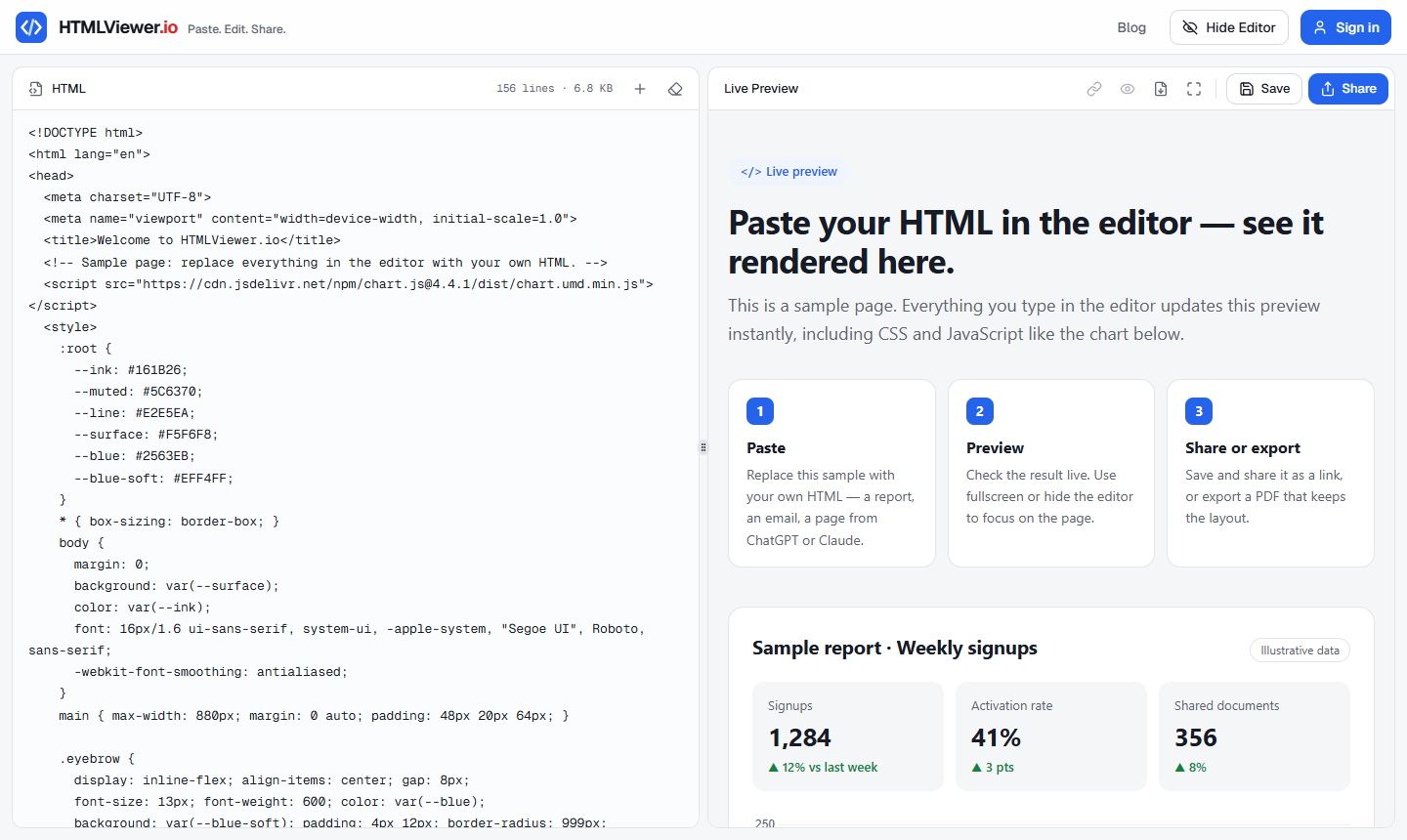
Paste the code into the editor and the page renders beside it immediately. No account is needed for this part.
- Open HTMLViewer.io.
- Paste the full HTML into the code panel. The panel shows the line count and size, which is a quick sanity check against what the chatbot produced.
- Look at the live preview. CSS, JavaScript and CDN libraries run as they would on a normal web page, so Chart.js charts, interactive tabs and Tailwind classes (when the page includes the Tailwind Play CDN script) all render.
- Click Fullscreen to open the page in a new window, or Hide Editor on desktop to see it at full width.
On a phone, the same flow works with Code and View tabs: paste into Code, switch to View. More detail is in the guide to opening HTML files on iPhone and Android.
Iterate without losing track
When you ask the chatbot for changes, it usually rewrites the whole file. Select all in the editor, paste the new version over the old one, and compare. If you want to keep a version, sign in and click Save before pasting the next one, then rename it in your Documents list (for example "Pricing page v2"). HTMLViewer.io doesn't keep version history on its own, so saving separate documents is how you keep old versions.
Share it as a link or a PDF
Sign in with Google, save the page, and send its share link, either public for anyone with the URL or limited to specific email addresses. Recipients don't need any AI account, and there's more on choosing between the options in how to share an HTML file as a link, and on dashboards specifically in sharing an HTML report without hosting.
For a file instead of a link, click Export PDF. "Text (recommended)" keeps text selectable and links clickable through your browser's print dialog (choose Save as PDF). "Exact snapshot" downloads a pixel-identical image-based PDF, which is useful when a chart or complex layout doesn't survive the print engine. The HTML to PDF guide covers page breaks and paper settings in detail.
Common problems with AI-generated HTML (and fixes)
Most failures come from the chatbot's answer, not the viewer. This table covers the ones you'll hit most:
| Symptom | Likely cause | Fix |
|---|---|---|
| Page stops halfway, layout broken at the bottom | Output hit the model's length limit | Ask "continue from exactly where you stopped," or ask for a shorter version; confirm it ends with </html> |
| Everything after a certain point is missing or looks like text | An unclosed tag or comment (<div, <!--, <script> without its closing tag) |
Ask the chatbot to "check for unclosed tags and return the full corrected file" |
| No styling at all | CSS was in a separate styles.css you didn't copy |
Ask for the CSS inside a <style> tag |
| Broken image icons | Images point to local files (images/hero.jpg) or invented URLs |
Ask for inline SVG, or replace them with URLs of images you actually host |
| Chart or button does nothing | JavaScript in a separate file, or a library that isn't loaded | Ask for inline scripts, and load libraries such as Chart.js from a CDN <script src> |
| Tailwind classes have no effect | The Tailwind Play CDN script is missing | Ask the chatbot to include the Tailwind Play CDN <script> tag in the <head>, or to convert the page to plain CSS |
| Works in the viewer, fails elsewhere | Scripts are blocked by the destination (email clients, some CMS editors) | Use a share link or PDF instead of pasting HTML into those tools |
Two notes on that table. First, Tailwind's own docs say the Play CDN is "designed for development purposes only, and is not intended for production". It's fine for previews and one-off reports, but for a page you'll deploy, ask for compiled or plain CSS. Second, if you plan to send the page as an email, scripts won't run in inboxes at all; the email template preview guide explains what does work.
What this approach doesn't cover
Pasting a single HTML file works well for self-contained pages, reports, charts and prototypes. It isn't the right tool for everything:
- Multi-file projects (React apps, anything with
npm install, several HTML pages that link to each other) need a real development environment or a platform like CodeSandbox or StackBlitz. See online HTML viewers compared for which fits what. - Collaborative editing. HTMLViewer.io has no co-editing. If a colleague needs to change the page, they need their own copy of the code.
- Local files. There's no upload. If the chatbot gave you a downloadable
.htmlfile, open it in a text editor, copy everything and paste it in. - Custom domains or production hosting. For a page that should live at your own URL, use a static host such as GitHub Pages or Netlify.
For everything else, the loop is short: prompt for one file, copy the whole block, paste, fix, share.
Frequently asked questions
Can I share a ChatGPT, Claude or Gemini preview directly?
Often yes. Each product has its own sharing option for supported previews, but the link lives on that company's platform and follows its rules. If you want a standalone copy you control, or a PDF, copy the HTML out and host or export it yourself.
Why does my AI-generated page look unstyled in a viewer?
Usually the CSS lives in a separate file the chatbot mentioned but you never copied, or a CDN link is missing. Ask for a single file with the CSS inside a <style> tag and paste the complete code again.
Why is the HTML the chatbot gave me cut off at the end?
Long answers can hit the model's output limit and stop mid-file. Ask it to continue from the last line, or to rewrite the page more compactly, then check that the code ends with </html>.
Do people I send the page to need a ChatGPT, Claude or Gemini account?
Not if you share it through HTMLViewer.io. A public link opens for anyone; a private link asks the invited person to sign in with Google, not with any AI product.
Is it safe to paste AI-generated HTML into a viewer?
The code runs in your browser like any web page, so read it before sharing with others. Watch for scripts that send data to unknown domains or forms that post to addresses you don't recognize.
Paste your HTML and see it rendered in seconds — free, no sign-up needed to preview.
Open HTML Viewer