How to View an HTML File Online (No Download, No Editor)
Double-click the .html file to open it in your browser, which works for simple pages. If images or scripts break, or you only have the code, open the file in a text editor, copy everything, and paste it into an online viewer like HTMLViewer.io to see a live rendered preview instantly.
On this page
You have an .html file, or a block of HTML code, and you just want to see what it looks like. The quickest fix is to open the file in your web browser. If that shows broken images, a blank page, or you only have the code as text, paste it into an online HTML viewer instead.
Key Takeaways
- Any browser can render a local
.htmlfile: double-click it or drag it into a browser window.- Local files lose images and styles when they point to files that aren't next to them, and some JavaScript features are blocked on
file://pages.- An online viewer like HTMLViewer.io renders pasted code with a live preview. There's no upload, so you copy the code from a text editor and paste it.
- Most "it looks wrong" problems come from relative paths, JavaScript errors, or a missing charset line.
What an HTML file actually is
An HTML file is plain text. It's a list of instructions (tags like <h1>, <table>, <img>) that a browser reads and turns into a formatted page. Open the same file in Notepad and you see the instructions; open it in Chrome, Safari, Firefox or Edge and you see the result.
That's why "viewing" an HTML file really means "getting a browser to render it." A typical file looks like this:
<!DOCTYPE html>
<html lang="en">
<head>
  <meta charset="utf-8">
  <title>Quarterly summary</title>
  <link rel="stylesheet" href="styles.css">
</head>
<body>
  <h1>Q3 summary</h1>
  <img src="images/chart.png" alt="Revenue chart">
  <script src="https://cdn.jsdelivr.net/npm/chart.js"></script>
</body>
</html>
Notice the three kinds of references. styles.css and images/chart.png are relative paths: the browser looks for them next to the HTML file. The Chart.js script is an absolute URL: the browser downloads it from the internet. That difference explains most rendering problems, and it decides which viewing method works best for you.
Option A: open the file in your browser
On a computer, double-clicking an .html file opens it in your default browser. You can also drag the file onto an open browser window, or press Ctrl+O (Cmd+O on a Mac) in the browser and pick the file.
The address bar will show something like file:///C:/Users/you/Downloads/report.html. That file:// prefix means the browser is reading straight from your disk, with no web server involved.
This works well when:
- The page is a single self-contained file (styles inside
<style>, images embedded or loaded fromhttps://URLs). - You also have the folder the file came with, so relative paths still resolve.
It gets shaky in a few situations:
- Missing assets. If someone emailed you only
report.html, thestyles.cssandimages/it references aren't on your machine. The page loads unstyled, with broken image icons. - Blocked requests. Modern browsers treat local files as having an opaque origin, so scripts that
fetch()a local JSON file, load web fonts, or read other local files often fail with CORS errors. MDN's note on CORS and file URLs explains the change and recommends running a local server for testing. - Phones. Mobile browsers make local files much harder to open. We cover that in how to open HTML files on iPhone and Android.
If you're a developer and hit the second problem often, a local server fixes it. The Live Preview extension for VS Code hosts one inside your workspace with a click.
Option B: paste the code into an online viewer
An online HTML viewer renders code you paste into a web page, so you don't need the file to live anywhere special. This is the better route when you only have the code (for example, from an AI chatbot or an email), when you're on a borrowed computer, or when you want to tweak the HTML and see the result right away.
HTMLViewer.io doesn't accept file uploads. You copy the source and paste it:
- Open the file as text. Right-click the
.htmlfile and choose Open with > Notepad (Windows) or TextEdit (Mac), or open it in VS Code. On a Mac, if TextEdit shows a formatted page instead of code, go to TextEdit > Settings > Open and Save and select "Display HTML files as HTML code instead of formatted text" (Apple's TextEdit guide). - Copy everything. Press Ctrl+A then Ctrl+C (Cmd+A, Cmd+C on a Mac).
- Paste into the editor. Open HTMLViewer.io and paste into the code panel on the left. It shows the line count and size of what you pasted.
- Read the live preview. The rendered page appears next to the code and updates as you type. HTML, CSS and JavaScript all run, and scripts or stylesheets loaded from CDNs work normally.
- Focus on the page. Click Hide Editor to see only the preview, or Fullscreen to open the document in its own window.
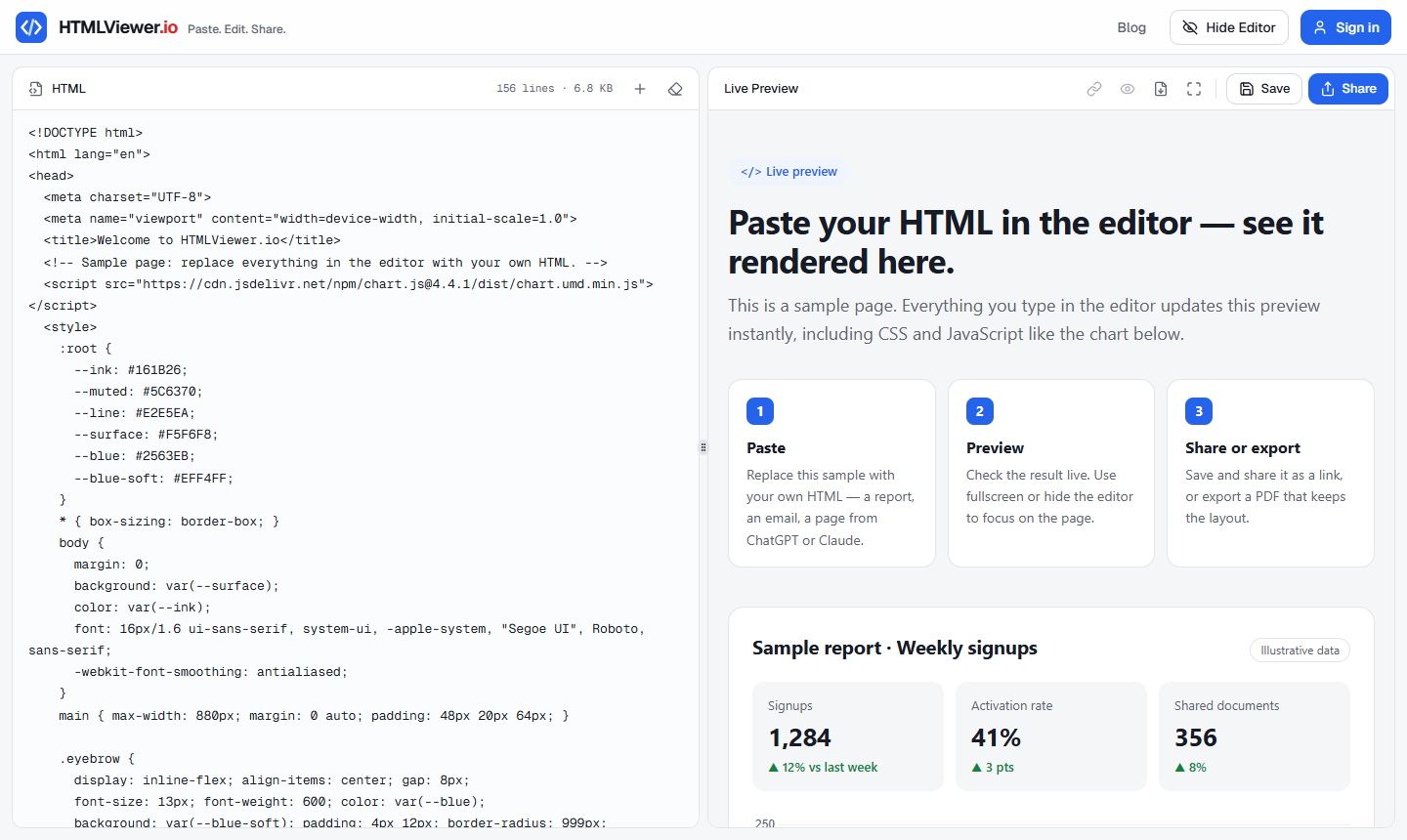
You don't need an account for any of that. Previewing and exporting a PDF work signed out. If you want to keep the page or send it to someone, sign in with Google to save it; saved documents can be up to 5 MB each. From there you can share the HTML file as a link or convert it to a PDF.
One trade-off to know: pasting moves only the text. Relative references like images/chart.png still point to files the viewer can't see. For those, use full https:// URLs or embed small images directly.
Which method should you use?
Pick the browser when you have the complete folder on a computer. Pick an online viewer when you only have the code, you're on a phone, or you want to edit and share.
| Situation | Open in browser (file://) |
Paste into online viewer |
|---|---|---|
| Single self-contained file on a laptop | Works, fastest | Works |
File plus its images/ and css/ folders |
Works | Relative assets won't load |
| Only the code (from chat, email, docs) | Save as .html first | Paste directly |
| Page fetches local JSON or data files | Often blocked by CORS | Also can't reach your local files |
| Page loads scripts from a CDN | Works if you're online | Works |
| Want to edit and see changes live | Edit, save, reload | Live preview as you type |
| On a phone | Often awkward or blocked | Works in the mobile browser |
| Need to send it to someone | Attach the file | Save and share a link (needs Google sign-in) |
If you're weighing several tools, our comparison of online HTML viewers like CodePen and JSFiddle covers where each one fits.
Troubleshooting: when the page doesn't look right
Most broken previews come down to three causes: files the page can't find, JavaScript that crashes, or text decoded with the wrong encoding. Here's how to spot and fix each.
Images or CSS are missing
The page shows plain black text on white, or broken image icons. That points to relative paths that don't resolve.
- Check the references. Search the code for
src=andhref=. Anything that doesn't start withhttps://ordata:depends on a local file. - Restore the folder. Ask the sender for the whole folder (often zipped) and open the HTML from inside it.
- Make it self-contained. Move CSS into a
<style>block in the<head>, and point images at hosted URLs. This also makes the page work in an online viewer and when shared.
The page is blank
A blank page usually means JavaScript builds the content and something stopped it.
- Open the browser's developer tools (F12, or Cmd+Option+I on a Mac) and look at the Console tab for red errors.
- A CORS or "not allowed to load local resource" error means the page is loading local files over
file://. Serve it with a local server, or paste it into an online viewer if the data comes from the internet. - A
ReferenceErrorlikeChart is not definedmeans a library didn't load. Check that the<script src>URL is correct and that you're online. - If the code came from an AI chatbot, it may be cut off. Check that it ends with
</html>. Our guide to previewing AI-generated HTML covers the usual copy-paste pitfalls.
Strange characters like é or ’
Accented letters or curly quotes that turn into garbage mean the browser guessed the wrong encoding. Add this line at the very top of the <head>:
<meta charset="utf-8">
Per MDN's reference for the meta element, the charset declaration must sit within the first 1024 bytes of the document, and utf-8 is the only valid value for HTML5. Also make sure your editor saves the file as UTF-8; Notepad and VS Code show the encoding in the status bar or save dialog.
It shows the code instead of the page
If you see raw tags, the file is being opened by something that isn't a browser, or it's named page.html.txt. Turn on file extensions in your file manager, rename it to .html, and open it with a browser. Or skip the file entirely and paste the code into a viewer.
Frequently asked questions
Can I view an HTML file without installing anything?
Yes. Every desktop browser can open .html files directly, and online viewers like HTMLViewer.io run in the browser, so you only need to paste the code. Neither option requires installing software.
Can I upload an HTML file to HTMLViewer.io?
No, HTMLViewer.io has no file upload. Open the file in any text editor such as Notepad, TextEdit or VS Code, select all, copy, and paste the code into the editor panel.
Why does my HTML file show code instead of a web page?
The file is being opened by a text editor or a preview tool instead of a browser, or it was saved with a .txt extension. Rename it to end in .html and open it with a browser, or paste the code into an online viewer.
Why are the images missing when I open an HTML file?
The page probably uses relative paths like images/logo.png, and those files aren't next to the HTML file on your computer. Keep the original folder structure, or switch the references to full https:// URLs.
Do I need an account to preview HTML on HTMLViewer.io?
No. Pasting code, previewing it and exporting a PDF work without an account. Signing in with Google is only needed to save documents or share them as a link.
Paste your HTML and see it rendered in seconds — free, no sign-up needed to preview.
Open HTML Viewer